Connect a phone, TV stick or console to a projector
Built-in apps cover most films and shows. For everything else, here's how to plug in or cast from what you already own.
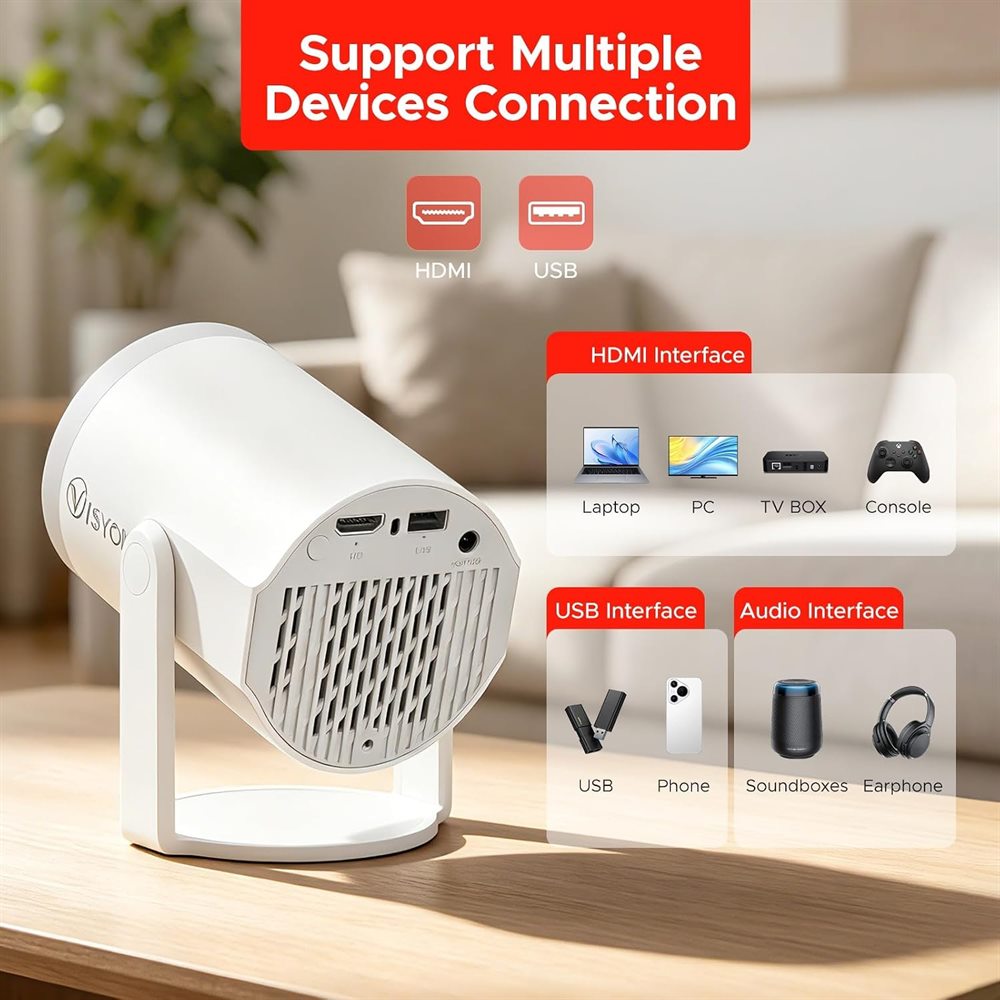
TV stick (Fire TV, Roku, Chromecast)
- Plug the stick into the projector's HDMI port and power it from its own adapter (or USB if the stick supports it).
- Choose HDMI as the input on the projector.
- Use the stick's own remote and apps.
This is also the fix if a streaming app won't run on the projector's built-in system.
Games console
Connect a PlayStation, Xbox or a Nintendo Switch in its dock with an HDMI cable, then choose HDMI input. For gaming, a picture of 60 to 80 inches is easier on the eyes than a giant one, and a wired speaker avoids Bluetooth sound delay.
Laptop
Use an HDMI cable (most modern laptops need a USB-C to HDMI adapter). On Windows press Windows + P and choose Duplicate; on a Mac use the Displays settings.
Phone
- Android: use Cast or Screen Mirroring from the quick settings, if the projector supports it, with both on the same WiFi.
- iPhone: some projectors support screen mirroring with an app; otherwise use a Lightning or USB-C to HDMI adapter.
- Copy-protected apps (many film services) often block mirroring. Use the projector's own app instead.
USB stick
Put films (MP4 is the safest format) or photos on a USB stick, plug it into the USB port and open the file manager or media player on the projector.
Speakers and headphones
- Bluetooth: put the speaker in pairing mode, then pair it in the projector's Bluetooth settings.
- Wired: use the audio output with a 3.5 mm cable. No delay, and good for gaming.
Updated 6 November 2026